The app in short videos
How Todowa works
Thirty-one short videos show how you work with Todowa: add a task, schedule it, get reminded, prepare it with AI, get it done, track your time – and park whatever isn’t urgent right now. Every clip is recorded in the real app with a demo account.
Freeno credit carddata in Frankfurtdelete anytime
Start for free – add Pro anytime
1. Add a task
Click “New task” – or press Q – and write down what needs doing. A title is enough; you can add a project, due date and description right away or later.
Once you save, a message with “Open” appears at the bottom. It takes you straight to the new task, so you don’t have to hunt for it in the list.
Need a photo with it? Use “Image” to attach one right away – on a phone straight from the camera or gallery, on a computer by uploading, pasting (⌘/Ctrl+V) or dragging it in, or from Google Photos. In the task, images sit below the description; tap one to see it large.
Other files work too: in the task panel, the “+” next to the images offers “Attach file” – for PDFs, Word documents, spreadsheets and anything else up to 100 MB per file. You can also drag files into the task panel or paste them. Images show with a preview, other files as a list with their size to download. Attachments from mails to Todowa land there as well.
Images and files count towards the storage of the workspace owner: 1 GB on the free plan, 10 GB with Pro. Settings → Subscription shows how much is used; when storage is full, Todowa shows the matching upgrade.
2. Inbox: capture first, schedule later
A task without a due date lands in the inbox. It sits at the very top of “My tasks” and is highlighted, so you can see what still needs sorting. When it’s empty, it disappears.
If a task reaches you through sync, by email to your Todowa address, through Claude or the API, or from someone else, it also shows up in the inbox – even if it already has a due date. “Out of inbox” confirms you’ve seen it. If there’s no date yet, Todowa asks: set a date or move it to the backlog.
Right-click a task and the quick actions open right at the pointer: start timer, backlog, favorite, full screen, and the dates Now, Today, Tomorrow and Next week. One click and the task moves to the right group. From the keyboard, use Shift+F10 or the context menu key; on a phone, tap the ⋯ button at the end of the row.
- Click the due date to pick a date, time and duration; click the priority to change it
- The small x next to the due date removes it again
- Drag the handle at the front to drop the task onto a project
Mail to Todowa: forward it, and it’s a task
Under Settings → “Mail to Todowa” you pick your own address, such as mara@in.todowa.com. Anything you send or forward there shows up shortly afterwards as a task in your inbox: the subject as the title, the text as the description, followed by the sender; attachments are added to the task.
Only mails from approved senders become tasks. Your account address always works; you add further addresses and confirm them via a link Todowa sends to that address. If someone else writes to your Todowa address, you get a notification email, and the mail waits up to 7 days for you to approve or discard it.
The incoming mail in this video is simulated: the demo account runs locally without a mail server, so the recording feeds the mail in directly. The address, the confirmation and the resulting task are the real app.
Share to Todowa: a screenshot, link or file from your phone
On an Android phone the installed Todowa app shows up in the share menu. Share a screenshot, a link or a file to Todowa and a task appears in your inbox and opens right away: images and files attached, links in the description.
Without a connection the shared content stays on your phone and is created once you’re back online. This isn’t available on the iPhone – use “Mail to Todowa” there.
Android’s share menu isn’t shown in the video: the recording runs in the browser and sends the screenshot to Todowa the way Android does.
3. The task in detail
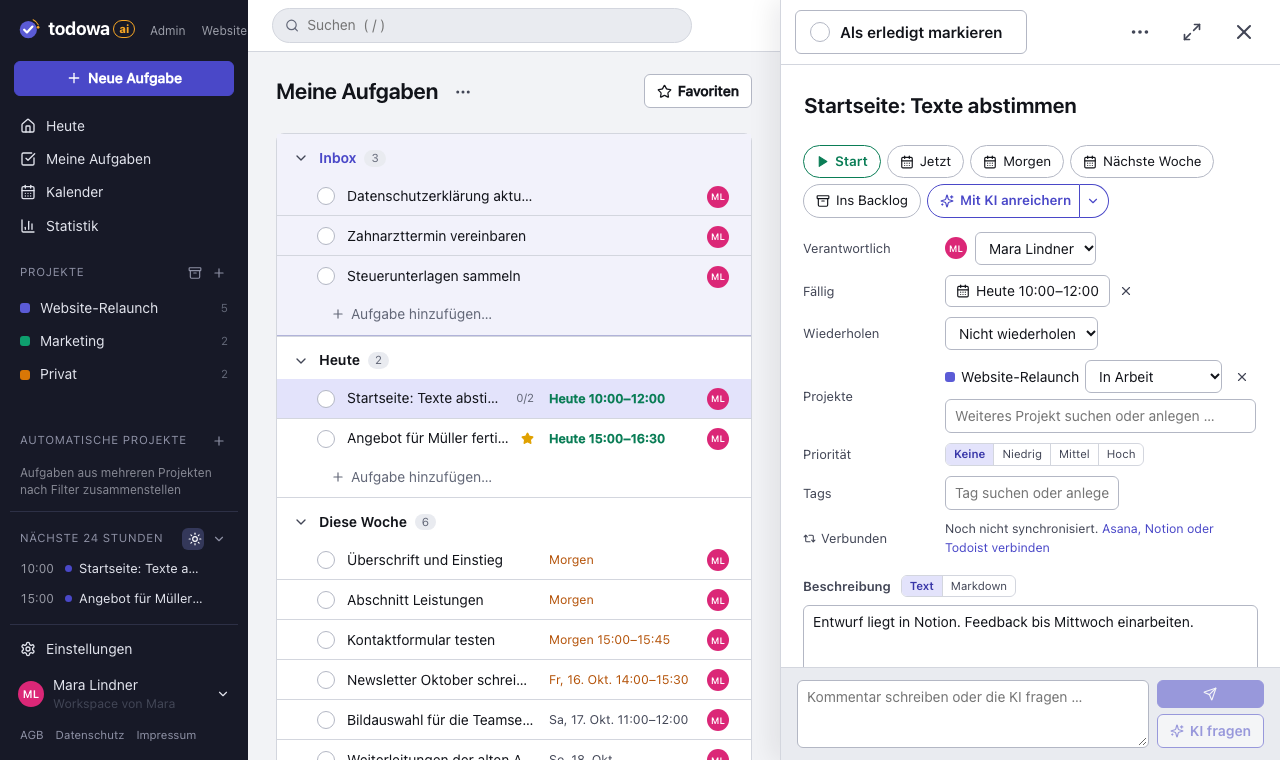
Click a task to open it next to the list. Below the title are quick actions: Today, Tomorrow, Next week and Backlog. Below that come assignees, due date, projects, priority, tags, description, subtasks and comments.
Check off the task at the top left. A “Task completed” message with “Undo” appears at the bottom – and the same goes for deleting. A wrong click costs you nothing.
Write the description as plain text or in Markdown – with headings, lists, tables and links. The toggle sits right next to “Description”; you choose the default for new tasks in the settings.
More room: the task in full screen
For long descriptions and lots of comments, open the task in full screen: it then fills the whole workspace next to the sidebar. The button is at the top right of the task, and “Open in full screen” is in every row’s quick menu (right-click the row).
The fastest way is the V key: over a row, it opens the task in full screen; inside an open task, it toggles between full screen and the side panel.
Recurring tasks
In the task’s date picker, under “Repeat”, you set how often it comes back: daily, weekly – including on specific weekdays – monthly or yearly, each every n. The schedule either runs fixed from the due date (“every Monday”) or counts from the day you complete the task (“three days after watering”).
When you check it off, the next task in the series is created – with description, projects, assignees, priority, tags, time and subtasks. Comments stay with the occurrence they belong to. If you’re several rounds behind, you get one due date in the future, not a pile of missed ones. “Undo” also removes the new task.
If you later open an old occurrence, the top shows when it was completed, with a button to the current task. For notes and wikis there’s “Copy link to series”: that link always leads to the currently open task. When deleting, you choose whether just this occurrence goes or the whole series ends.
Monthly on the last day or the last Friday
With “Monthly” on a fixed schedule you also choose the day of the month: on the day of the due date, on the first day of the month, on the last day of the month or on a weekday – the first, second, third, fourth or last Monday through Sunday. That way the month-end close always lands on the last Friday and the rent on the first.
When you set the rule, the due date moves to the first matching day and keeps its time. If you move a due date by hand afterwards, it stays where you put it. A ↻ next to the due date shows that the task repeats; in the list the tooltip names the rule, e.g. “Monthly on the last Friday”.
Faster: edit right in the list
You don’t have to open a task for the essentials. Click the priority, due date or assignee to change it right in the row. For the assignee, pick another member or remove the assignment.
Share with others
Under “People” you add people to a task – from your team, or by name or email address. One person is responsible, the others are involved. People without an account view and comment on the task through a link in the email.
You share whole projects with registered accounts in the project settings: view, comment or edit. For the other person the project shows up in the sidebar under “Shared projects”; with “edit” they can create tasks there too.
Those tasks belong to the project. Anyone who leaves or is removed can keep a copy of their own tasks under “Shared with me” for 30 days.
Columns your way
You decide which columns a list shows next to the title: project, priority, due, assignee, tags, created and modified. The button sits on the right of every list header. Turn columns on and off there and use the arrows to move them where you want.
Each list remembers its own choice – “My tasks”, every project and every automatic project separately. “Restore defaults” brings back the original layout.
Tags as quick filters: the right list for every situation
In Settings → Tags you create tags for situations – “Evening”, “On the go”, “Desk”, “Calls”, “Eat the Frog” and more; suggestions are added with one click. For each tag you choose where it appears as a button above the list: in “My tasks”, in “Today”, in all projects or only in specific ones.
One click on the button shows only the tasks with that tag, a second click clears the filter. Several buttons together show the tasks that have all selected tags. Each list remembers its choice.
Working on tasks together: people, permissions, history
Under “Assignee” and “People” you pick people from your team – or simply type a name or an email address. Anyone added by email gets an email with a link: through it they can view and comment on the task, even without an account. Editing works with a free account for the same address; all shared tasks then appear under “Shared with me”.
You share projects via “Edit project” with registered accounts, each with view, comment or edit permission. The permission applies to every task in the project; for a single task you restrict it under “People”. The history in every task shows who changed what and when.
Even faster: keyboard shortcuts
Point at a task and press a key: T moves it to tomorrow, D to today, W to next week, N schedules it for now. B puts it in the backlog, F makes it a favorite, E checks it off, V opens it in full screen. The shortcuts are listed next to each action in the row’s quick menu – open it with a right-click or Shift+F10.
The help menu at the top right – or the “?” key – shows all shortcuts at a glance.
Edit multiple tasks at once
Ctrl-click (Cmd-click on a Mac) adds a task to the selection; Shift-click selects the whole range up to it. This works in every list and on the board. If a task is already open, it counts as the first one selected. On a phone, press and hold a task to start selecting; after that, tapping selects.
A bar at the bottom shows how many tasks are selected. From there you set priority, date and assignee for all of them at once, and add or remove projects and tags. Every change can be reverted with “Undo”; Esc clears the selection.
You pick tags the same way as projects: type, choose an existing one, or create a new one with the name you typed – in the bar as well as in a single task.
Drag and drop: everything else makes room
Drag tasks to where you want them – within a section or into another one in the list, from column to column on the board. While you drag, neighboring tasks move aside: a gap the size of the task opens at the target, so you can see where it will land before you let go.
You drag whole sections the same way: on the board by the column header, in the list by the handle in front of the name.
Automatic projects: collect tasks with a filter
An automatic project collects tasks from other projects using a filter you save – for example everything in the “In progress” lane of two projects. You can also filter by assignee, tags, priority, due date, status, favorites and backlog. Tasks aren’t copied: change one here and it changes everywhere.
You decide how it looks: with the lanes of the source projects, with lanes of the same name merged, as a single list, or grouped by project, due date, priority or person – as a list or a board. Drag a task to another column and whatever the column stands for changes: the lane in its project, the priority or the assignee. Within a group you order tasks by dragging – that order only applies in the automatic project; the source projects stay as they were.
An automatic project is either private or visible to the whole workspace. “Me” in a filter always means whoever is looking at it. Create one with the “+” under “Automatic projects” in the sidebar – on your phone, with the “+” next to “Projects” on the “Today” page.
Organize projects: reorder sections
You structure a project into sections – on the board, those are the columns. You set their order yourself: on the board, drag a column by its header to the new spot; in the list, use the handle in front of the section name.
Without dragging, use the arrows in the section header – on your phone, too. The order applies to the list and board at once, and for everyone in the project.
4. Backlog: set aside without deleting
Not everything is due now. Whatever you put in the backlog stays an open task in its project, but disappears from “My tasks” and the calendar. The date is kept.
Use the menu next to the heading to show the backlog and bring tasks back with one click. If you keep a backlog checkbox in Notion, you can sync it with Todowa.
Find things again: search and “Recently changed”
The search at the top – or the “/” key – finds projects and tasks as you type, in titles and descriptions. Above the results you can narrow it down: all, projects, open or completed tasks.
“Recently changed” shows what you worked on last: open and completed tasks, most recent change first, with the time next to it. No search term needed – one click and the task you just had is back.
Enter or “Show all results” opens the search results page with every filter: projects and lanes, assigned to – or explicitly not to – specific people, tags (any, all or without), priority, due with a time, date only or no date, status, favorites and backlog. A search you need often can be saved as a smart project.
5. Calendar: see if it fits into your week
Tasks with a time appear as time blocks in the weekly calendar. Move them with the mouse and drag the edge to change the duration. Tasks without a time sit on the left and can be dragged into the week.
Below the projects, the sidebar shows what’s coming up in the next 24 hours – tasks and calendar events. You can start time tracking from there, too. If Google Calendar is connected, its events show up there as well. Drag the sidebar and the task panel to whatever width suits you.
Show events from Google, Apple or Outlook alongside. With the Google Calendar connection, your tasks also appear there: as time blocks if they have a time, as all-day entries if they don’t.
Click an overlaid event – in the calendar or in “Next 24 hours” – to see its details: time, location with a map link, organizer, description and the video call link. From there you jump to the calendar’s day view, start time tracking or turn the event into a task.
With Google Calendar or your Outlook calendar connected you create events there too: select a time range in the calendar, switch the window to “Event”, pick the calendar – and the event is in Google or Outlook right away. Move events from both with the mouse, change them under “Edit” in their detail view or delete them there.
6. On your phone: swipe instead of tap
You can install Todowa on your phone like an app. Swipe a task right to make it a favorite. Swipe left to reveal “Backlog” and “Delete”. Press and hold a task to select it: every further tap adds a task, and the bar at the bottom changes them all at once.
“More” at the bottom right takes you to settings, integrations, statistics and signing out. Without a connection you can keep adding tasks; they’re synced as soon as you’re back online.
On your phone: add tasks and events by voice
Tap the plus at the bottom centre and Todowa listens – until you tap “Done”; pauses to think don’t end anything. Just say what needs doing – “Create a to-do for tomorrow at 8:30: send the invoice to the agency, project Marketing”. The AI turns it into a task with date, time, project and priority. If you explicitly say “appointment” or “meeting”, it adds the event to your connected Google or Outlook calendar; without a connected calendar it becomes a task with a time.
Afterwards you see what was created: tap to open the task, “Undo” takes it all back, “Something else” starts listening again. Without a microphone you simply type the sentence. Transcription uses AI speech recognition (gpt-4o-transcribe by OpenAI), which gets the names of your projects, people and tags and your latest tasks as hints; the AI then fixes mishearings with the same knowledge. The recording isn’t stored. Where AI speech recognition isn’t available, your browser does it – with Chrome and Android usually Google, with Safari and iOS Apple. Voice input needs a connection and counts towards the AI allowance. Speech recognition is simulated in the video.
Hold the plus down to choose between task, event and voice input – “Task” opens the usual quick add, which also works offline. Creating tasks by voice isn’t available on the computer, but you can speak questions to your to-do system there.
Reminders on your phone and watch
Under Settings → Notifications you turn on reminders for each device separately – phone, computer, tablet. Your browser asks for permission once. Todowa reminds you of tasks with a due date that you’re responsible for, and of events from your calendars: subscribed calendars and Google Calendar.
You choose when once for your account, as many times as you like: at the time of the event, 5, 10, 15 or 30 minutes, 1 or 2 hours or one day before – the default is 10 minutes. For all-day items Todowa reminds you on the day at a time you pick (default 8 am), or not at all. Tasks and calendar events can be switched off separately. Tap the reminder and the task opens – for a calendar event, the calendar.
On an Android phone, reminders arrive in Chrome and in the installed app; a Wear OS watch shows them too, because it mirrors the phone’s notifications. On an iPhone, it only works if you’ve added Todowa to the home screen (iOS 16.4 or later) and open it from there. “Devices” shows where reminders arrive; “Send test” checks that it works.
Not possible yet: a custom reminder time for individual tasks – your account settings apply – and reminders by email. In the video the computer is switched on and a test notification is sent; the notification itself isn’t visible in the recording.
7. Time tracking: start and stop inside the task
Start time tracking in any task with one click. Todowa doesn’t keep time itself: the timer runs in your own tool – Harvest directly, anything else via a webhook.
The first time you start a timer in a project, Todowa asks once which project and activity to book to, and remembers it for every task in the project. Start the same task again on the same day and its Harvest entry keeps running instead of creating a second one. The running task sits at the very top of “My tasks”, with the elapsed time and “Stop” next to it.
8. AI: enrich and ask
Below the title of every task you’ll find “Enrich with AI”. The AI searches your earlier tasks for anything relevant – including completed ones – adds to the description and creates next steps as subtasks. Use the arrow next to it to choose how thorough it should be: quick lookup, prepare or work it out.
In the comments, click “Ask AI” instead of “Send”. Your comment stays, and the AI replies below it, using the task and the conversation so far as context. Anything the AI added can be reverted with “Undo”. The answers in the video come from a demo model.
Under Settings → AI you create AI teammates – as many as your plan allows (one is included, more with the “AI team 5” and “AI team 10” packages), each with a name, picture, subline, character, traits and skills. In a task, use “Hand over to Alex”: Alex becomes responsible, works on it in the background, posts its status in the comments and then hands the task back to you – it lands in your inbox. Type @Alex in any comment to call it; @ also links people and other tasks. An automatic project “Tasks of Alex” shows what it is working on.
AI suggestions in the inbox: one click and the AI does it
With Todowa Pro and AI suggestions switched on, the AI looks at every new inbox task once and suggests actions in a comment – drafting a reply or creating the next steps, for example. Every action is a button that runs it right away.
Below them you describe your own actions. With “Suggest more often for similar tasks” they come back for matching tasks. With connected tools (MCP) the AI suggests actions with them too.
The AI’s answers in the video are simulated: the demo account runs locally with a stand-in model. The comment, buttons and result show the real app.
Ask your to-do system: questions to your tasks
The icon in the style of the logo, with a microphone, sits in the header bar on your computer and at the top centre on your phone. There you ask your tasks – typed, as an example question or spoken until “Done”: “What’s due today?”, “What should I do next?”, “What did I finish last week?”.
The AI picks the kind of answer: just matches like a search result, a short text with the tasks it relies on below, or possible duplicates. Tasks open on top of the result; close them and you’re back at the overview.
Afterwards Todowa asks whether it may store a reduced, anonymous version of the question for its learning system – without names, amounts, projects or account. It’s only stored with “Yes, store it”; “Don't ask again” switches this off. The AI’s answers in the video are simulated.
Find and merge duplicate tasks
Ask “Are there duplicate tasks?” and Todowa shows groups of open tasks with very similar titles. In each group you choose which one stays – the oldest is preselected – and tap “Merge”.
Descriptions, comments, subtasks and tags of the others move into the remaining task, as do due date and priority if it has none. The others are deleted; the history shows “Duplicate task merged into this one”. In the video, speech recognition and the AI’s plan are simulated; the real app finds the duplicates.
Project templates: ready-made boards with an AI team
Via “New project” → “From template” you create ready-made boards – Software development, Content & SEO, Client project, Family & home or Trip & event. Before creating them you see each board with its lanes and the AI teammates working in them. A name such as “Shop” is put in front of the board names.
Lanes and AI teammates are already wired up; the first lane holds sample tasks that only start once you move them on. Templates come with Pro.
Flow across boards: subtasks in other projects
In a project’s “AI team”, each lane has “Flow across boards”: choose which lanes – also in other projects – subtasks go to, where the task moves once they are all done, and whether tasks are done on arrival.
The parent task gets the status of its subtasks as a comment: which subtask moved to which board and which one is done. Once the last one is done, it moves on by itself – to “Acceptance” in the video.
Software development with AI Content & SEO with AI Family organizer with AI
Hit a plan limit: the upgrade window
When you reach a limit of your plan, Todowa doesn’t show an error but a window with the matching upgrade – ready to book. That happens, for example, when you pick a project template on the free plan or want more than 20 projects or 5 members in a workspace, when you add another AI teammate, when the month’s AI allowance is used up, or when sync reaches its monthly limit (then once a month).
Depending on the limit, it offers Todowa Pro (monthly or yearly), the “AI team 5” (€39 a month) and “AI team 10” (€79 a month) packages on top of Pro, or AI credit (€10 of credit for €12, one-off). “Later” closes the window, “See all plans” takes you to Settings → Subscription. In the video, the window for a used-up AI allowance is opened directly in the demo account; nothing is booked.
9. Secure your account: two-step sign-in
Turn on two-factor authentication under Settings → Security: scan the QR code with an authenticator app, enter the six-digit code once, done. From then on Todowa asks for the code every time you sign in – whether you use a password, sign-in link, Google or Microsoft.
When you turn it on, you get eight recovery codes. Each works once and gets you into your account if your phone is missing. Keep them somewhere other than your phone.
On your own computer you don’t have to enter the code every time: with “Remember this device”, Todowa won’t ask there for 90 days. You set the duration yourself – from never to unlimited – and remove remembered devices in the settings with one click.
10. Multiple accounts: switch without signing out
If you have a personal and a work account, sign in to both in the same browser. Choose “Add account” in the menu at the bottom left; after that you switch between accounts there with one click, without signing in again.
“Sign out” signs out only the account that’s currently open; “Sign out of all accounts” signs out all of them. The sign-in page lists the accounts you’re signed in to.
11. Have your say: Wishes & feedback
On the “Wishes & feedback” page you can submit what you’re missing – no account needed. Next to the form you’ll see submitted wishes, sorted by votes; use the arrow to vote for the ones that matter to you.
New wishes appear once we’ve reviewed them. Each wish shows whether it’s planned or already done.
And in the background: sync
Everything you do in Todowa reaches the tools you’ve connected: Asana, Notion, Todoist, Monday.com, Google Tasks and Google Calendar. Changes made there come back, too. Sync runs about once a minute, and the sync log shows what it did.
In the video, Monday.com gets connected: pick two boards, do a dry run, switch sync on. Afterwards the items are tasks in Todowa – in the “Marketing” project right next to the tasks that were already there.
Why we’re building Todowa
Your tasks belong to you – not to your tools.
Tasks are spread across many tools, and none of them sees the whole picture. We’re building Todowa as an AI-first to-do system that fits into the ones you already use: tasks show up in your Notion database, in Asana, in Todoist and in Google Calendar, and AI matches up what belongs together.
Our goal for TodowaFrequently asked questions
Are the videos from the real app?
Yes. They’re recorded automatically in the app, with a demo account and made-up tasks. Whenever a feature is added or changes, we record the videos again.
What’s the difference between the inbox and the backlog?
The inbox holds whatever doesn’t have a due date yet and still needs sorting. The backlog is where you deliberately put things that aren’t due for now; they disappear from “My tasks” and the calendar until you bring them back.
Can I attach files to tasks?
Yes. In the task panel, “Attach file” adds PDFs, Word documents, spreadsheets and other files up to 100 MB, or you drag them in. Images show with a preview, other files as a list to download. Storage covers 1 GB, or 10 GB with Pro.
Can I try Todowa without connecting anything?
Yes. Todowa works perfectly well on its own. You can connect Asana, Notion, Todoist, Monday.com or Google whenever you need to.
More about Todowa
Bring your tasks together.
Create an account, connect your tools, get going – free, add Pro anytime.
Freeno credit carddata in Frankfurtdelete anytime